 | Dev Portal
DAST scan settings
The Scan settings tab—available on the DAST project creation page—allows you to manually adjust the default scan settings used by the fAST Dynamic scanner. For example, you can enable or disable certain checkers, exclude URL paths, or fine-tune the behavior of the crawler. Note that scan settings are auto-configured during the pre-flight phase of a DAST scan unless you disable the Use Smart Settings feature (see the Miscellaneous section).
Simple scan settings
On the Simple subtab, you can adjust scan settings for the current DAST profile across five different categories, as well as define authentication profiles.
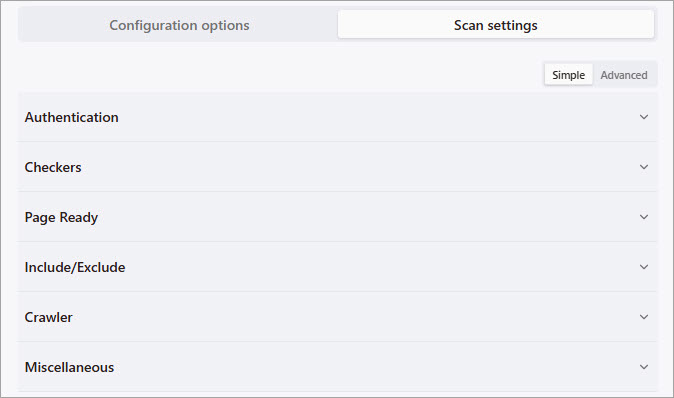
Authentication
In the Authentication section, you can define an authentication profile (Auth Profile). Authentication profiles are the components of a DAST profile that handle authentication to web apps and APIs. For more information on the available options, see Authentication profiles.
Checkers
In the Checkers section, you can adjust which DAST checkers are applied during scans of the web application or API target. Active checkers directly interact with the target website or API. They will craft and send attack payloads and then observe the target web application or API's behavior in order to identify security concerns.
Use the checkboxes under Active Checkers and Passive Checkers to select which checkers will be applied during DAST scans of the target.
Active Checkers
Select from the following options:
- All (default): Enable all active checkers.
- Partial: Enable selected active checkers only. Use the checkboxes to select the checker codes and classnames you want to enable.
- None: Disable all active checkers; only passive checkers will be applied during scans.Note: Active Checkers are set to None if the Perform Active Attacks setting is disabled.
Passive Checkers
Disable Passive Checkers: Disables all passive checkers apart from those selected under Partial.
Select from the following options:
- All (default): Enable all passive checkers.
- Partial: Enable selected passive checkers only. Use the checkboxes to select the checker codes and classnames you want to enable.
- None: Disable all passive checkers.
Page Ready
For JavaScript intensive applications like Single Page Applications (SPAs) built in React or similar frameworks, a DAST scanner must determine when the content expected for a page to function has been fully loaded by the browser before it begins to interact with the page. To address this challenge, fAST Dynamic includes a set of "page readiness" rules that are optimized for SPAs. If required, you can override the default page readiness rules for specific web pages in your site.
Page Ready Configs
Key: Set to PageLoad by default. The scan engine will determine when a page has finished loading. If set to RunEvent, the scan engine will determine when a page is ready to run a JavaScript event.
Mode: Set to SPA by default. The SPA page readiness mode is designed to help the scanner recognize when pages have loaded in Single Page Applications. It includes a set of default heuristics common for detecting page readiness in these types of applications. Note that SPA is the only supported mode.
The following settings let you specify the page setting behavior for a specific page or a matching set of pages (Regexes). If you leave these settings blank, the default page setting behavior for SPA Mode will be applied universally.
- Pages: Accepts a map with URL strings as keys (without scheme) and
PageReadySettingsobjects as values. If the current browser URL is an exact match for one of the provided strings, it will use whatever heuristics and settings are specified for the page.
- Regexes: Accepts a map with regex strings as keys and
PageReadySettingsobjects as values. Any browser URL that matches with the regex will use whatever heuristics and settings are specified, unless it has already matched with a URL in the Pages field.
Include / Exclude
These settings allow you to include and exclude specific hosts, paths, URLs, and other resources from scans, as well as restrict certain resources from active attacks by the scanner.
Allowed Hosts: Specifies the hostnames that the scanner considers to be in scope when performing DAST scans on the target. Provide either Hostname:Port pairs or URLs.
Included Paths: A set of URL paths to include in DAST scans, e.g. app, about, contact. If set, only URL paths matching the specified values are included in scans. If left blank, all valid paths are included.
Excluded URLs: A set of URL paths to exclude from DAST scans, e.g. logout, signout. The scan engine will never send a request to any URL on these hosts, even through the browser.
Excluded Attack URLs: URLs to exclude from active attacks, if the Perform Active Attacks setting is enabled on the Configuration options tab.
Exclude Reserved IPs: When enabled, reserved IPs (usually IPs residing on the local subnet) are considered as out of scope for DAST scans. Disabled by default.
Excluded File Extensions: List of file extensions to exclude from DAST scans, such as binary file types. Populated with commonly excluded file types.
Excluded MIME Types: List of MIME types (Media types) to exclude from DAST scans. Populated with commonly excluded MIME types.
Excluded Parameters: Parameter names that will never be attacked by the scanner. Populated with several commonly excluded parameters.
Excluded Status Codes: List of server codes to exclude from DAST scans. Populated with 401 and 404 codes.
Excluded Hosts: List of URLs to exclude from DAST scans.
Excluded Attack Headers: List of header names to not be attacked. Populated with a list of commonly excluded headers.
Excluded Attack Cookies: List of cookie names to not be attacked. Populated with a list of commonly excluded cookies.
Crawler
The settings under Crawler allow you to adjust settings for the crawler component of the DAST scanner.
Crawler Parsers
The crawler consists of several parsers, all of which are enabled by default. You can enable only selected parsers by using the All, Partial, and None options.
The following settings allow you to modify the depth of the crawl:
- Max Parser Page Permutations (default 5): Threshold for the number of similar pages to crawl.
- Max Links Per Page (default 100): The maximum number of links to crawl per page.
- Max Link Depth (default 15): The maximum depth of links to crawl.
- Max Links Total (default -1): If set to a positive integer, determines the maximum number of crawled links for the crawl.
- Max Form Submissions (default 0): If set to a positive integer, determines the maximum number of form permutations.
Form Values
The Form Values, Type Values, Name Values, and Name Regex Values forms are pre-populated with example data consisting of keys and values. The scanner uses this data to attempt to bypass specific validation and enter specific values into input fields. You should not need to modify these values.
Parser Settings
File Not Found settings:
- Use File Not Found Fingerprinter (default on): Whether non-404 responses should be analyzed to determine if they are actually File Not Found pages.
- File Not Found Status Codes: HTTP status codes to be treated as equal to a 404 error in the fingerprinter. Populated with typical "file not found" server codes.
- File Not Found Signatures: Strings to be located on a page in the File Not Found fingerprinter. Populated with common strings.
- File Not Found Similarity Percent (default 0.9): How similar a page must be to a probed File Not Found error page.
Deduplication settings:
- Deduplication: Controls whether pages should be skipped based on content and structures as compared to previously crawled pages. Deduplication settings are enabled by default.
- Hash Similarity Percent (default 0.9): Controls how similar a page should be to previous pages during deduplication.
- Required Match Count (default 2): Controls how many matches are required before a page is considered a duplicate.
- Path Based (default on): Controls whether deduplication should group pages by the path.
- Global Similar Pages Limit (default 20): Sets the number of pages to cluster together to collect for deduplication.
Browser Render Pages Before Parse (default on): Controls whether the response should be loaded in a browser and the HTML extracted. This is typically enabled for SPAs; you can disable this setting if scanning static HTML websites to increase scanning speed.
Queue Type (default empty): Type of the crawler queue.
Crawl Time Limit (default 70h): Sets the timeout for the crawl, in absolute scan time.
Filter Post To Self (default on): Controls whether to filter two otherwise identical POST requests on different pages that both post to the page they are on as duplicates.
Miscellaneous
The settings under Miscellaneous control the Smart Settings feature of the DAST scanner.
Use Smart Settings (default: on): When Smart Settings is enabled, fAST Dynamic uses a set of "page readiness" heuristics to determine if a web page is ready for interaction. During the pre-flight phase of a scan, Smart Settings may dynamically adjust the scan settings on both the Simple and Advanced subtabs of Scan settings. For transparency, any changes applied by Smart Settings are noted in the scan report provided after a scan completes.
Smart Settings Settings (all defaults: on)
- Test Site Check: Checks whether the site is a test or a benchmark site.
- SPA Check: Checks whether to enable SPA and rendering.
- Fast Spacheck: Checks whether to enable faster SPA settings, if applicable.
- Auth Timeout Check: Checks whether auto-increasing the timeout values for failed logins results in successful logins.