 | Dev Portal
Add a component (or component origin)
Follow these steps to manually add a component or component origin to a project:
-
Use the options on the Add Component window to identify the component, component version, or component origin you wish to add:
Tip: To add a component origin, the Component and Version you select should already exist in the project/branch.
-
Component: Enter the name of the component you wish to add in this field. As you type, similarly-named components appear. When you find the component you wish to add, select it.
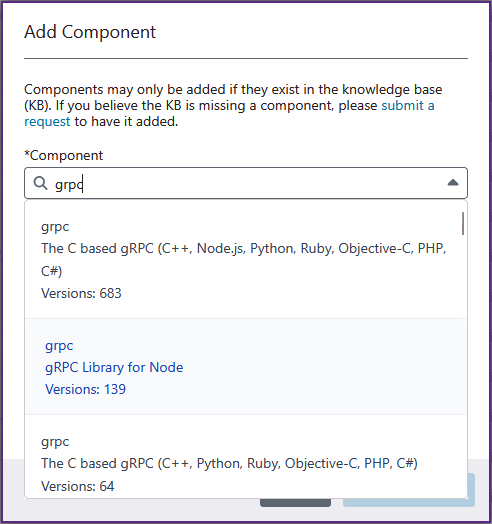
Note: If the component you're looking for isn't captured in the Black Duck KnowledgeBase™, you can submit a request to have it added. Select submit a request, and follow the instructions in Black Duck Community to submit a support case. When you submit your support case, select Black Duck KnowledgeBase using the Product dropdown.
A banner appears near the top of the Components tab, indicating the component is being added. After the component is added, select Refresh to update the list of components.Tip: Components you add manually have a match type value of Manually Added. If you add an origin to a component detected in a test, Manually Added is added to its match types. You can use the Match Type filter to quickly identify components that were added manually, and components with origins that were added manually.Additionally, when you open a test's results, you can use the Found post-test filter to find issues associated with manually-added components. See Find issues captured after a test for more information.
-
Component: Enter the name of the component you wish to add in this field. As you type, similarly-named components appear. When you find the component you wish to add, select it.